

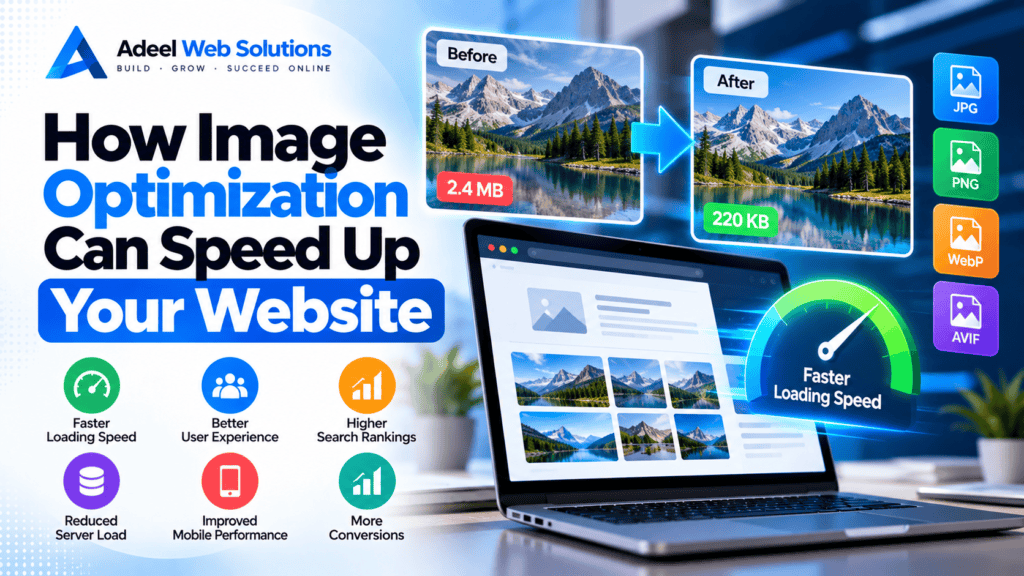
How Image Optimization Can Speed Up Your Website
Images are an essential part of modern website design. They showcase products, introduce teams, explain services, strengthen branding, and make pages more visually engaging. However, images can also become one of the biggest causes of slow website performance when they are uploaded without proper optimization.
A high-resolution photograph taken on a modern smartphone or camera can easily be several megabytes in size. If multiple large images are loaded on a single webpage, visitors may have to download a significant amount of unnecessary data before they can comfortably browse the page.
This is where image optimization becomes important.
By resizing, compressing, formatting, and delivering images efficiently, businesses can significantly reduce page weight while maintaining professional visual quality.
In this guide, we’ll explain how image optimization can speed up your website, which image formats to consider, how lazy loading works, and what WordPress website owners can do to improve image performance.
What Is Image Optimization?
Image optimization is the process of reducing the amount of data required to display website images while maintaining suitable visual quality.
It can involve several techniques, including:
- Resizing images
- Compressing image files
- Choosing appropriate file formats
- Removing unnecessary metadata
- Serving responsive image sizes
- Converting images to modern formats
- Lazy-loading non-critical images
- Using a Content Delivery Network
- Prioritizing important above-the-fold images
The objective is not simply to make every image as small as possible.
Instead, the goal is to find the right balance between image quality and performance.
A professional website should look sharp while avoiding unnecessarily large downloads.
Why Images Can Make Websites Slow
Modern cameras and smartphones capture extremely high-resolution photographs.
An original photograph might be:
- 4000 pixels wide
- 5000 pixels wide
- 6000 pixels wide
- Several megabytes in file size
That level of resolution may be useful for photography or printing, but it is often unnecessary for normal website use.
Imagine uploading a 5000-pixel-wide photograph and displaying it inside a website section that is only 800 pixels wide.
Unless an appropriately sized version is served, the visitor may download far more image data than is actually needed.
Now imagine the same problem occurring across:
- Hero banners
- Service images
- Team photographs
- Blog posts
- Galleries
- Testimonials
- Product pages
The total page size can increase quickly.
How Image Optimization Improves Website Speed
A browser needs to download website resources before it can display them.
The larger those resources are, the more data must be transferred.
If a page contains five images at 2 MB each, those images alone could represent approximately 10 MB of data.
If optimized versions reduced those files substantially while maintaining acceptable visual quality, the page could become much lighter.
Smaller images can contribute to:
- Faster downloads
- Reduced bandwidth usage
- Faster mobile browsing
- Better perceived performance
- Reduced server and CDN transfer
- Improved page experience
The exact improvement depends on the original files, website design, network conditions, and delivery configuration.
1. Resize Images Before Uploading Them
One of the simplest image optimization techniques is resizing.
Avoid uploading images at dimensions far larger than your website requires.
For example, if an image will never appear wider than approximately 1200 pixels, uploading a 6000-pixel original may be unnecessary.
Determine the dimensions required by your website design and create appropriately sized images.
Common website uses may include:
- Hero images
- Blog featured images
- Service cards
- Team photos
- Product thumbnails
- Gallery images
Each use case may require different dimensions.
The important principle is simple:
Don’t make visitors download significantly more image data than they need.
2. Compress Images
Image compression reduces file size.
There are two broad types of compression:
Lossless Compression
Lossless compression reduces file size without intentionally discarding image information.
It can be useful when preserving original image data is particularly important.
Lossy Compression
Lossy compression reduces file size by removing some image information.
When configured properly, the visual difference may be difficult for ordinary website visitors to notice while producing much smaller files.
For most website photography, carefully controlled lossy compression can provide an effective balance between quality and performance.
Avoid excessive compression that produces visible:
- Blurring
- Pixelation
- Banding
- Artifacts
- Loss of detail
Your website still needs to look professional.
3. Choose the Right Image Format
Different image formats are designed for different purposes.
Selecting an appropriate format can significantly affect file size and quality.
JPEG
JPEG remains useful for photographic images.
It can provide good compression for:
- Photography
- Service photos
- Team photos
- Background images
- Blog images
JPEG does not normally provide the transparency capabilities associated with PNG.
PNG
PNG is commonly used when transparency or lossless graphics are required.
It can be appropriate for:
- Certain logos
- Interface graphics
- Transparent elements
- Screenshots in some cases
However, PNG files can become unnecessarily large when used for detailed photographs.
WebP
WebP is a modern image format designed to provide efficient compression.
It supports both lossy and lossless compression and can also support transparency.
For many websites, WebP can reduce file sizes compared with older formats while maintaining suitable quality.
AVIF
AVIF is another modern image format that can provide strong compression efficiency.
It can be useful for reducing image transfer sizes, although your implementation should consider browser support, workflow, processing requirements, and fallback strategies where needed.
SVG
SVG is particularly useful for vector graphics.
It can work well for:
- Logos
- Icons
- Simple illustrations
- Geometric graphics
Because SVG graphics are vector-based, they can scale without becoming pixelated.
However, SVG files should be handled securely, especially when users can upload them.
4. Use WebP or AVIF Where Appropriate
Modern formats such as WebP and AVIF can help reduce image sizes.
For example, instead of serving a large JPEG or PNG to every visitor, your website may generate and serve a smaller modern-format version.
The actual savings vary depending on:
- Original format
- Image content
- Compression settings
- Required quality
- Image dimensions
Do not convert images simply because a newer format exists.
Test visual quality and file size to determine which format works best for your website.
5. Use Responsive Images
Visitors access websites from many different screen sizes.
A desktop user may need a large image, while a smartphone visitor may need a much smaller version.
Serving the same enormous desktop image to every device can waste bandwidth.
Responsive images allow browsers to select an appropriate image based on factors such as screen size and layout.
WordPress automatically provides useful responsive image functionality for many uploaded images.
However, themes, page builders, custom templates, and background images should still be reviewed to make sure appropriately sized assets are actually being delivered.
6. Lazy-Load Below-the-Fold Images
Not every image needs to load immediately.
Suppose a page contains 20 images, but only three are visible when the visitor first opens it.
Loading all 20 at once may be unnecessary.
Lazy loading delays certain off-screen images until they are closer to the visible area.
It can be particularly useful for:
- Blog posts
- Image galleries
- Portfolios
- Product listings
- Long service pages
- Testimonial sections
- Team sections
This helps the browser prioritize content visitors need first.
7. Don’t Lazy-Load Every Image
Lazy loading is useful, but applying it indiscriminately can sometimes hurt perceived performance.
Your main hero image or another critical above-the-fold image may need to load immediately.
If the most important visible image is unnecessarily delayed, it can negatively affect how quickly the page appears complete.
This can also affect Largest Contentful Paint (LCP) when that image is the largest visible content element.
Use lazy loading strategically:
Critical visible images → prioritize
Below-the-fold images → consider lazy loading
8. Optimize Hero Images Carefully
Hero images deserve special attention because they are usually:
- Large
- Prominent
- Above the fold
- Loaded immediately
- Potential LCP elements
A poorly optimized hero image can become one of the largest performance bottlenecks on the page.
When optimizing a hero image:
- Use appropriate dimensions.
- Compress it carefully.
- Select an efficient format.
- Avoid unnecessary resolution.
- Consider responsive versions.
- Avoid automatically lazy-loading it.
- Review whether preloading is appropriate.
Also consider whether the design truly requires a massive full-screen background image.
Sometimes a smaller, well-designed image can produce the same visual impact with better performance.
9. Avoid Using Images for Text
Text should generally remain real HTML text instead of being embedded inside images.
Using images for headings or paragraphs creates several disadvantages:
- Larger files
- Poor responsiveness
- Accessibility problems
- Difficult editing
- Reduced search engine understanding
- Poor scaling on different screens
Use HTML and CSS for text whenever possible.
Images should support your content rather than replace normal webpage text unnecessarily.
10. Remove Unnecessary Image Metadata
Photographs can contain metadata such as:
- Camera information
- Shooting settings
- Editing software information
- Other embedded data
Some of this information may not be required for website display.
Image optimization tools can often remove unnecessary metadata while processing files.
The savings from metadata alone may not always be dramatic, but it is another useful part of a complete optimization workflow.
11. Use Thumbnails Instead of Full-Size Images
WordPress can generate several image sizes after an image is uploaded.
Depending on your configuration, these may include:
- Thumbnail
- Medium
- Medium-large
- Large
- Full size
- Custom theme sizes
When displaying a small image card, use an appropriately sized image rather than loading the full-resolution original.
For example, a 300-pixel-wide thumbnail should not require a visitor to download a 4000-pixel original if a suitable smaller version is available.
12. Optimize WordPress Images
WordPress provides several built-in features that can help with image delivery, but additional optimization may still be necessary.
A good WordPress image workflow can include:
- Resize images before uploading.
- Compress them.
- Use appropriate file formats.
- Add descriptive alternative text where appropriate.
- Allow WordPress to generate responsive sizes.
- Lazy-load non-critical images.
- Optimize hero images separately.
- Consider modern image formats.
- Use a CDN when beneficial.
WordPress optimization plugins can automate parts of this process, but they should be configured carefully.
Installing several image optimization plugins that perform the same task can create unnecessary complexity.
13. Optimize Elementor Background Images
Elementor is widely used for WordPress website development.
One common performance issue occurs when large images are used as section or container backgrounds.
Background images may not always behave exactly like normal WordPress image elements when it comes to responsive image selection.
For Elementor websites:
- Review background image dimensions.
- Compress large backgrounds.
- Avoid unnecessary full-resolution photographs.
- Create mobile-appropriate alternatives when needed.
- Remove unused background images.
- Avoid stacking multiple large backgrounds on one page.
Pay particular attention to hero sections.
14. Optimize Product Images for E-Commerce
Product photography is extremely important for online stores.
Customers want clear, detailed images, but uploading unnecessarily large files can make product pages slow.
A good e-commerce image strategy should balance:
Visual Detail + File Size + Zoom Requirements + Mobile Performance
Optimize:
- Product thumbnails
- Category images
- Main product images
- Gallery images
- Related product images
Avoid loading every high-resolution gallery image immediately if the visitor has not requested it.
For WooCommerce websites, test product pages on mobile devices as well as desktop computers.
15. Use a CDN for Image Delivery
A Content Delivery Network can help deliver images from distributed infrastructure.
Instead of every visitor requesting an image directly from your main hosting server, cached versions may be served from a CDN location closer to the visitor.
Depending on the service, an image CDN may also provide:
- Automatic resizing
- Format conversion
- Compression
- Device-specific optimization
- WebP or AVIF delivery
A CDN can be especially useful for image-heavy websites serving customers across different geographic regions.
16. Avoid Too Many Images Above the Fold
The top section of a webpage should focus on essential information.
Loading several large images before visitors can interact with the page can increase initial page weight.
Consider whether you really need:
- Multiple hero images
- Large sliders
- Several decorative photographs
- Autoplay carousels
- Heavy background graphics
Often, one strong optimized image combined with a clear headline and call-to-action creates a more effective hero section.
17. Replace Heavy Sliders When They Add Little Value
Image sliders can require multiple images to load along with additional CSS and JavaScript.
For example, a hero slider containing five large photographs may download significantly more data than a single optimized hero image.
Ask whether visitors genuinely need the slider.
For many business websites, a static hero section can be:
- Faster
- Easier to understand
- More mobile-friendly
- Easier to maintain
- More focused on conversions
Sliders can still be useful in appropriate situations, but they should not be included automatically.
18. Don’t Sacrifice Image Quality Too Much
Optimization should not make your website look unprofessional.
Extremely compressed images can show visible quality problems.
This is particularly damaging for businesses relying on visuals, including:
- Real estate
- Construction
- Restaurants
- Fashion
- E-commerce
- Photography
- Interior design
- Travel
- Automotive businesses
Always inspect optimized images visually.
The smallest possible file is not automatically the best file.
The objective is the smallest practical file that still looks good for its intended use.
19. Image Optimization Can Improve Mobile Experience
Image optimization is particularly important for mobile users.
Smartphone visitors may have:
- Slower network connections
- Limited bandwidth
- Smaller screens
- Less powerful hardware
Downloading desktop-sized images on a small screen wastes data and can make pages feel slower.
Responsive images, compression, lazy loading, and efficient formats can help create a smoother mobile experience.
Always test important pages on real mobile devices when possible.
20. Image Optimization Can Support Core Web Vitals
Images can influence multiple performance metrics.
Largest Contentful Paint
Large hero images are often the LCP element.
Optimizing and prioritizing them can improve how quickly important content appears.
Cumulative Layout Shift
Images without properly reserved dimensions can cause content to move as they load.
Defining dimensions or aspect ratios helps the browser reserve space in advance.
Overall Page Weight
Smaller images reduce the amount of data visitors need to download.
Image optimization should therefore be included in any Core Web Vitals improvement strategy.
Common Image Optimization Mistakes
Avoid these common problems:
- Uploading camera-original images directly
- Using PNG for large photographs unnecessarily
- Loading full-resolution images as thumbnails
- Lazy-loading critical hero images
- Compressing images until they look poor
- Using one large image for every screen size
- Adding unnecessary image sliders
- Loading hidden images
- Ignoring Elementor background images
- Forgetting mobile optimization
- Using images instead of HTML text
- Installing several overlapping optimization plugins
A structured image workflow can prevent many of these issues before they reach the live website.
Website Image Optimization Checklist
Use this checklist when reviewing your website:
- Resize images before uploading
- Compress large images
- Choose appropriate file formats
- Consider WebP or AVIF
- Use SVG appropriately for vector graphics
- Serve responsive image sizes
- Lazy-load below-the-fold images
- Prioritize critical hero images
- Optimize Elementor background images
- Remove unnecessary metadata
- Use thumbnails correctly
- Review e-commerce product images
- Consider an image CDN
- Reduce unnecessary sliders
- Avoid oversized decorative images
- Reserve image dimensions to reduce layout shifts
- Test image quality after compression
- Test pages on mobile devices
- Check Core Web Vitals
- Regularly audit newly uploaded images
How Often Should You Optimize Website Images?
Image optimization should ideally happen before images are uploaded.
This prevents the media library from filling with oversized files.
However, existing websites often contain years of unoptimized media.
In that situation:
- Back up the website.
- Audit the largest files.
- Identify important pages.
- Optimize high-impact images first.
- Generate appropriate image sizes if needed.
- Configure modern formats where appropriate.
- Clear caches.
- Test the website.
- Compare performance results.
Start with your highest-traffic and most important conversion pages rather than attempting to change thousands of images without a plan.
Final Thoughts
Images make websites more attractive, engaging, and informative, but they can also become a major source of unnecessary page weight.
Effective image optimization combines proper dimensions, compression, modern formats, responsive delivery, lazy loading, CDN technology, and careful prioritization of above-the-fold content.
You don’t need to remove high-quality photography from your website to achieve good performance.
Instead, make sure visitors receive the right image, in the right format, at the right size, at the right time.
For WordPress websites, pay particular attention to hero images, Elementor backgrounds, blog featured images, galleries, and WooCommerce product photography.
A thoughtful image strategy can reduce unnecessary downloads, improve mobile browsing, support Core Web Vitals, and create a faster overall experience for your customers.
Need Help Optimizing Your Website Images and Speed?
If your website contains oversized images, slow-loading pages, poor mobile performance, or WordPress performance issues, a professional website audit can help identify where improvements are needed.
At Adeel Web Solutions, we help businesses improve WordPress performance, website speed, image optimization, responsive design, and overall user experience.
Whether you need to optimize an existing website, improve Core Web Vitals, clean up a slow WordPress installation, or build a faster website from the ground up, we can help.
Contact Adeel Web Solutions today to discuss your website speed and performance optimization requirements.
