

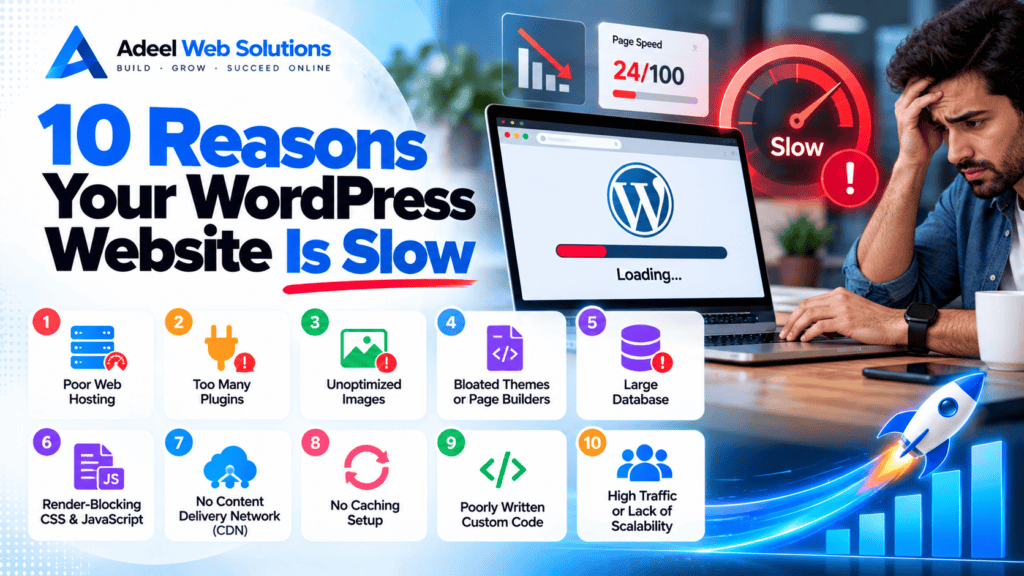
10 Reasons Your WordPress Website Is Slow
WordPress is one of the most flexible platforms for building business websites, blogs, portfolios, membership sites, and online stores. However, a WordPress website can gradually become slower as new plugins, images, tracking tools, design features, and content are added.
A slow website is more than a technical inconvenience. It can frustrate visitors, make mobile browsing difficult, reduce engagement, interfere with lead generation, and create unnecessary friction during the customer journey.
The challenge is that there is rarely one universal reason a WordPress website is slow.
Performance can be affected by your hosting, theme, plugins, images, database, caching configuration, JavaScript, third-party integrations, and even how individual pages are designed.
If your WordPress website has become slow, here are 10 common reasons why—and what you can do about them.
1. Your Web Hosting Is Too Slow
Hosting is the foundation of your WordPress website.
When someone opens a page, the hosting server may need to process PHP, access the WordPress database, run plugins, load theme functionality, and generate the requested content.
If the server is overloaded or does not provide sufficient resources, the entire website can feel slow.
Common Hosting Problems
Your hosting environment may struggle because of:
- Limited CPU resources
- Insufficient RAM
- Slow storage
- Overloaded shared servers
- Poor database performance
- Outdated server software
- Inefficient configuration
- High traffic
- Lack of server-level caching
Low-cost shared hosting can be suitable for smaller websites, but growing business websites and WooCommerce stores may eventually require additional resources.
How to Fix It
Start by checking your server response time and hosting resource usage.
Consider whether your current hosting plan provides enough resources for your website’s traffic and functionality.
Depending on your requirements, you might consider:
- Better shared hosting
- Managed WordPress hosting
- VPS hosting
- Cloud hosting
However, don’t immediately upgrade hosting without investigating other performance problems.
A powerful server will not automatically fix massive images, inefficient plugins, or excessive JavaScript.
2. Your Images Are Too Large
Oversized images are one of the most common WordPress performance problems.
Modern smartphones and cameras can create photographs several thousand pixels wide and multiple megabytes in size.
Uploading these files directly to WordPress can create unnecessarily heavy pages.
For example, if an image is displayed at approximately 800 pixels wide, visitors may not need to download a 5000-pixel original.
Common Image Problems
Look for:
- Camera-original photographs
- Large PNG photographs
- Oversized hero images
- Unoptimized Elementor backgrounds
- Full-resolution gallery images
- Large WooCommerce product photos
- Images without compression
How to Fix It
Before uploading images:
- Resize them.
- Compress them.
- Choose an appropriate format.
- Use responsive image sizes.
- Consider WebP or AVIF.
- Lazy-load below-the-fold images.
Pay particular attention to your hero image.
Because the hero is usually above the fold, it may be responsible for your Largest Contentful Paint (LCP).
Don’t automatically lazy-load your main LCP image. Critical above-the-fold images often need to be prioritized.
3. You Have Inefficient or Unnecessary Plugins
Plugins are one of WordPress’s biggest strengths, but they can also create performance problems.
It is important to understand that the number of plugins alone does not determine website speed.
Ten lightweight, well-developed plugins may perform better than one extremely inefficient plugin.
Plugins can slow down WordPress by adding:
- Database queries
- JavaScript
- CSS
- External requests
- Background processes
- Scheduled tasks
- Additional API calls
How to Fix It
Review every installed plugin and ask:
- Do we still use this plugin?
- Is it actively maintained?
- Does another plugin already provide the same feature?
- Does it load scripts on every page?
- Does it create excessive database activity?
- Is there a lighter alternative?
Remove plugins that are genuinely unnecessary.
Also delete unused plugins rather than keeping large numbers of inactive plugins indefinitely.
Before removing anything, confirm that it is not required by your theme, page builder, forms, checkout, or another important website feature.
4. Your WordPress Theme or Page Builder Is Too Heavy
Themes control a large portion of your website’s design and structure.
Some multipurpose WordPress themes include extensive functionality such as:
- Sliders
- Animation systems
- Shortcodes
- Icon libraries
- Custom widgets
- Multiple layout systems
- Additional JavaScript libraries
If you use only a fraction of those features, your website may still carry unnecessary overhead.
Page builders can create similar problems when pages are poorly structured.
Elementor Performance Problems
Elementor itself can be used to build fast and professional websites, but performance may suffer when pages contain:
- Excessive nested containers
- Too many widgets
- Multiple Elementor add-on packages
- Large background images
- Heavy sliders
- Excessive animations
- Large DOM structures
How to Fix It
Simplify your website structure.
For Elementor websites:
- Remove unnecessary containers.
- Delete empty elements.
- Reduce unnecessary widgets.
- Limit add-on plugins.
- Optimize background images.
- Avoid excessive animation.
- Replace unnecessary sliders.
- Simplify mobile layouts.
A professional design does not need to be technically complicated.
Often, simpler layouts provide both better usability and better performance.
5. You Don’t Have Proper Caching
WordPress dynamically generates pages.
When someone requests a page, WordPress may need to:
- Process PHP.
- Load WordPress core.
- Run plugins.
- Load theme functionality.
- Query the database.
- Generate the page.
- Send the result to the visitor.
Repeating this process for every request can require significant server resources.
Caching can reduce this workload.
Types of Caching
WordPress performance can involve several types of caching:
- Page caching
- Browser caching
- Object caching
- Server-level caching
- CDN caching
- Edge caching
How to Fix It
Use a caching solution compatible with your hosting environment.
Your hosting provider may already include server-level caching, so check before installing multiple caching plugins.
Running several optimization plugins with overlapping functionality can create conflicts.
For WooCommerce websites, configure caching carefully.
Pages such as:
- Cart
- Checkout
- Customer accounts
contain dynamic information and may need to be excluded from certain caching rules.
6. Your Database Is Bloated
WordPress stores website information in a database.
Over time, that database may accumulate unnecessary data.
Examples include:
- Old post revisions
- Spam comments
- Expired transients
- Deleted content
- Old plugin information
- Orphaned metadata
- Unused tables
A large database does not automatically mean a slow website, but unnecessary database activity and inefficient queries can contribute to performance problems.
How to Fix It
Regular database maintenance can help.
You may review and clean:
- Old revisions
- Spam
- Expired temporary data
- Unused plugin information
However, database optimization should be handled carefully.
Always create a complete backup before deleting database information.
Never delete a table simply because its name looks unfamiliar. It may contain important settings, customer information, orders, form entries, or other essential data.
For larger websites, identifying slow database queries can be more useful than simply deleting records.
7. Your Website Loads Too Much JavaScript and CSS
Modern WordPress websites can load CSS and JavaScript from multiple sources.
These may include:
- WordPress core
- Your theme
- Plugins
- Elementor
- Elementor add-ons
- WooCommerce
- Analytics
- Advertising platforms
- Chat widgets
- Review tools
Over time, the browser may be required to download and process a significant amount of code before the page becomes fully usable.
Why JavaScript Can Be Particularly Problematic
Heavy JavaScript can affect both loading and interaction responsiveness.
A page may appear visually complete but still respond slowly when someone:
- Opens a menu
- Clicks a button
- Changes a product option
- Opens an accordion
- Uses a filter
This can contribute to poor Interaction to Next Paint (INP).
How to Fix It
Depending on your website, optimization may involve:
- Minifying CSS
- Minifying JavaScript
- Removing unused CSS
- Removing unused JavaScript
- Deferring non-critical JavaScript
- Delaying certain scripts
- Reducing third-party resources
Test carefully after making these changes.
Aggressive JavaScript optimization can break forms, menus, sliders, checkout functionality, popups, or tracking systems.
8. You Have Too Many Third-Party Scripts
Many WordPress websites depend on external services.
Common examples include:
- Google Analytics
- Advertising pixels
- Live chat
- Social media feeds
- Google Maps
- YouTube videos
- Review widgets
- Heatmaps
- CRM integrations
- Booking platforms
- Tracking software
These services may provide genuine business value, but each can introduce additional network requests and JavaScript.
Because the resources come from external servers, you also have limited control over their performance.
How to Fix It
Audit every third-party integration.
Ask:
Do we still need this tool?
Remove:
- Old tracking pixels
- Duplicate analytics
- Unused chat systems
- Abandoned marketing tools
- Unnecessary social widgets
For tools you need, investigate whether they can be loaded more efficiently.
For example, video embeds can sometimes use a preview thumbnail and load the full player only after interaction.
9. Your Website Uses Too Many Fonts, Animations, and Visual Effects
Visual design can become a performance problem when every section includes additional effects.
Your website may load:
- Multiple font families
- Numerous font weights
- Entrance animations
- Scroll effects
- Parallax backgrounds
- Sliders
- Counters
- Carousels
- Animated backgrounds
- Video backgrounds
Individually, these features may seem small.
Together, they can increase the amount of CSS, JavaScript, fonts, and media the browser needs to process.
How to Fix It
Use visual effects strategically.
For fonts:
- Limit font families.
- Load only necessary weights.
- Optimize font delivery.
- Consider system fonts where appropriate.
For animations:
- Keep important effects.
- Remove decorative effects that provide little value.
- Avoid animating every section.
- Review performance on mobile devices.
A clean, professional website can often look more modern with fewer effects.
10. Your WordPress Website Hasn’t Been Maintained
Website performance can decline gradually.
When a website is first launched, it may be fast and lightweight.
Over the next several years, different people may:
- Install plugins
- Add tracking scripts
- Upload large images
- Add videos
- Create new landing pages
- Change themes
- Add Elementor extensions
- Install marketing tools
- Leave old plugins behind
Eventually, the website becomes significantly heavier than the original version.
How to Fix It
WordPress performance requires ongoing maintenance.
Regularly review:
- WordPress core
- Themes
- Plugins
- PHP compatibility
- Image sizes
- Database health
- Caching
- Third-party scripts
- Broken functionality
- Core Web Vitals
- Mobile performance
Also perform a performance review after major website changes.
How to Find Out What Is Actually Slowing Down WordPress
Don’t assume the cause.
Test first.
Useful tools include:
- Google PageSpeed Insights
- Chrome Lighthouse
- GTmetrix
- WebPageTest
- Chrome DevTools
Test multiple pages because performance can vary dramatically across your website.
For example, compare your:
- Homepage
- Main service page
- Blog article
- Contact page
- Landing page
- Product page
- Cart and checkout
Look for patterns.
If every page responds slowly before content begins loading, investigate hosting and backend performance.
If only pages with large banners are slow, image optimization may be the priority.
If pages load quickly but buttons respond slowly, investigate JavaScript and INP.
Don’t Try to Fix Everything With a Speed Plugin
A common WordPress optimization mistake is installing another performance plugin whenever a speed test shows a problem.
A plugin can help with:
- Caching
- Minification
- Lazy loading
- Compression
- Script optimization
But it cannot automatically solve every underlying issue.
For example, a caching plugin cannot fully fix:
- Poor hosting
- Badly developed plugins
- Excessive third-party services
- Complicated page structures
- Inefficient database queries
- Unnecessary functionality
Sometimes the best optimization is removing something rather than adding another plugin.
Why Is WordPress Slow on Mobile but Fast on Desktop?
This is another common issue.
Mobile visitors may experience your website differently because they can have:
- Less powerful processors
- Slower network connections
- Less available memory
- Smaller screens
Heavy JavaScript and oversized images become particularly noticeable under these conditions.
When optimizing mobile WordPress performance, review:
- Mobile hero images
- Menus
- Popups
- Sticky elements
- Sliders
- Animations
- Fonts
- Forms
- Third-party widgets
Don’t simply hide heavy desktop elements with CSS.
If the browser still downloads and processes them, they can continue affecting performance.
What About Core Web Vitals?
When diagnosing WordPress performance, pay attention to the three Core Web Vitals.
Largest Contentful Paint (LCP)
LCP evaluates loading performance.
Poor LCP may be caused by:
- Large hero images
- Slow servers
- Poor caching
- Render-blocking resources
Interaction to Next Paint (INP)
INP evaluates interaction responsiveness.
Poor INP can result from:
- Heavy JavaScript
- Complex plugins
- Third-party scripts
- Large DOM structures
Cumulative Layout Shift (CLS)
CLS evaluates visual stability.
Poor CLS can result from:
- Images without dimensions
- Dynamic banners
- Fonts
- Ads
- Third-party widgets
Looking at the individual metrics can help you understand what type of performance problem needs attention.
WordPress Speed Troubleshooting Checklist
If your WordPress website is slow, check the following:
- Hosting performance
- Server response time
- CPU and memory usage
- Image sizes
- Hero images
- WordPress plugins
- Theme performance
- Elementor structure
- Page caching
- Browser caching
- Database performance
- CSS size
- JavaScript usage
- Third-party scripts
- Fonts
- Animations
- Video embeds
- Mobile performance
- Core Web Vitals
- WooCommerce functionality
- PHP configuration
- WordPress updates
Work through these areas systematically instead of changing everything at once.
Should You Aim for a 100 PageSpeed Score?
A perfect performance score is not required for every website.
A real business website may need functionality such as:
- Contact forms
- Analytics
- Booking systems
- CRM integrations
- Maps
- Reviews
- Videos
- Payment processing
Removing valuable business functionality simply to improve a testing score may not make sense.
Your priority should be:
Speed + Functionality + User Experience + Design + Conversions
Use PageSpeed Insights and similar tools to identify genuine problems rather than treating the score itself as the final objective.
How Often Should You Optimize WordPress?
WordPress optimization should be part of ongoing website maintenance.
Consider checking performance:
- After installing plugins
- After major plugin updates
- After redesigning pages
- After changing hosting
- After adding tracking systems
- After adding large images or videos
- Before major marketing campaigns
- When traffic increases
- When visitors report performance problems
Regular maintenance is usually easier than trying to repair several years of accumulated website bloat at once.
Final Thoughts
There are many reasons a WordPress website can become slow, but the most common problems usually come back to a combination of hosting, images, plugins, themes, caching, databases, JavaScript, third-party scripts, visual effects, and ongoing maintenance.
The solution should begin with measurement rather than guesswork.
Test your important pages, identify the largest bottlenecks, and address them in order of impact.
You may discover that your website simply needs image optimization and caching. In other cases, the solution may require plugin cleanup, hosting improvements, database optimization, Elementor restructuring, or a broader website rebuild.
Most importantly, optimize your WordPress website for real visitors.
A faster website should make it easier for people to browse your services, read your content, contact your business, book an appointment, or complete a purchase.
Is Your WordPress Website Running Slowly?
If your WordPress website takes too long to load, performs poorly on mobile devices, or has low Core Web Vitals and PageSpeed results, a professional performance review can help identify the cause.
At Adeel Web Solutions, we help businesses improve WordPress speed, website performance, Core Web Vitals, image optimization, Elementor performance, responsive design, and overall website functionality.
Whether your website needs plugin cleanup, caching optimization, image improvements, Elementor optimization, or a complete performance-focused redesign, we can help identify the bottlenecks and implement practical solutions.
Contact Adeel Web Solutions today to improve your WordPress website speed and provide a better experience for your visitors.
