

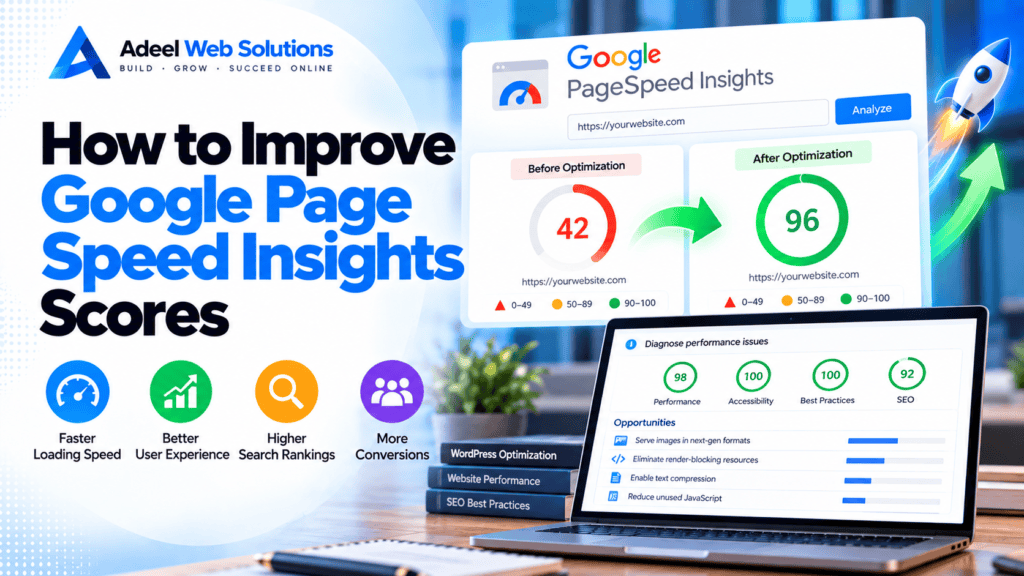
How to Improve Google Page Speed Insights Scores
Website speed plays an important role in user experience, mobile usability, conversions, and overall website performance. One of the most popular tools for evaluating website performance is Google Page Speed Insights.
Page Speed Insights analyzes a webpage and provides information about its performance on mobile and desktop devices. It can highlight issues involving images, JavaScript, CSS, server response times, caching, fonts, layout stability, and other areas that may affect the user experience.
However, improving your Page Speed Insights results is not simply about trying to achieve a perfect score of 100.
The real goal should be to understand why your website is slow and make improvements that create a noticeably faster and smoother experience for real visitors.
In this guide, we’ll explain how to improve Google Page Speed Insights scores, which performance issues deserve the most attention, and how WordPress website owners can approach optimization safely.
What Is Google Page Speed Insights?
Google Page Speed Insights is a performance analysis tool that evaluates individual webpages.
It provides information for both:
- Mobile
- Desktop
Depending on available data, Page Speed Insights may show information from real-world users as well as results from a controlled Lighthouse test.
The report can help identify performance issues and provide diagnostic information that developers can use when optimizing a website.
Common areas evaluated include:
- Loading performance
- Core Web Vitals
- JavaScript execution
- CSS delivery
- Image optimization
- Server response
- Caching
- Fonts
- Layout stability
- Third-party resources
Instead of looking only at the overall score, pay attention to the individual metrics and diagnostic recommendations.
Understanding the Page Speed Performance Score
Page Speed Insights provides a performance score from 0 to 100 for its Lighthouse-based test.
The general score categories are:
- 90–100: Good
- 50–89: Needs improvement
- 0–49: Poor
A higher score generally indicates better performance under the conditions of that particular test.
However, the score can change between tests because of factors such as server load, network conditions, third-party resources, and dynamic website behavior.
This is why one isolated test should not be treated as the complete picture of website performance.
Core Web Vitals and Page Speed Insights
Core Web Vitals are especially important when evaluating website performance.
The three current Core Web Vitals are:
Largest Contentful Paint (LCP)
LCP measures loading performance by evaluating how quickly the primary visible content is rendered.
Google considers an LCP of 2.5 seconds or less good.
Interaction to Next Paint (INP)
INP measures how responsive a webpage is when users interact with it.
An INP of 200 milliseconds or less is considered good.
Cumulative Layout Shift (CLS)
CLS measures unexpected movement of page elements.
A CLS score of 0.1 or less is considered good.
Improving these metrics can create meaningful improvements for visitors rather than simply increasing a testing score.
Field Data vs Lab Data
Page Speed Insights may provide two different types of performance information.
Field Data
Field data represents experiences from real users when sufficient data is available.
These users may have different:
- Devices
- Internet connections
- Locations
- Browsing conditions
Field data is particularly valuable because it reflects actual visitor experiences.
Lab Data
Lab data is generated under controlled testing conditions using Lighthouse.
It is useful for diagnosing performance issues and repeatedly testing optimization changes.
A website can sometimes show differences between field and lab results. This does not necessarily mean something is wrong.
The two datasets measure performance in different ways and serve different purposes.
Why Mobile Page Speed Scores Are Often Lower
Many website owners notice that their desktop score is significantly higher than their mobile score.
This is common.
Mobile testing accounts for more constrained conditions than a typical high-powered desktop environment.
Mobile performance can be affected by:
- Large images
- Heavy JavaScript
- Complex layouts
- Third-party scripts
- Slow server response
- Excessive animations
- Large DOM structures
Instead of asking why mobile does not match desktop exactly, focus on identifying what is creating unnecessary work for mobile visitors.
1. Start With a Performance Audit
Before changing anything, test your website and record the results.
Check several pages rather than only your homepage.
Important pages may include:
- Homepage
- Service pages
- Landing pages
- Blog posts
- Contact page
- Product pages
- Cart
- Checkout
Look for recurring problems.
If every page has a slow server response, hosting or backend performance may deserve attention.
If only one page has poor LCP, the problem might be a large hero image or page-specific resource.
Optimization should be based on evidence.
2. Optimize Your Largest Contentful Paint
LCP is often one of the most important opportunities in Page Speed reports.
On business websites, the LCP element is frequently the:
- Hero image
- Main banner
- Large heading
- Featured image
If a hero image is responsible for poor LCP:
- Resize it appropriately.
- Compress it.
- Consider WebP or AVIF.
- Avoid unnecessarily lazy-loading it.
- Serve an appropriate responsive size.
- Consider prioritizing or preloading it when technically appropriate.
If the LCP element is text, investigate whether fonts, CSS, or server response are delaying its rendering.
Always identify the actual LCP element before deciding how to fix it.
3. Optimize Website Images
Images are among the most common causes of large webpages.
Avoid uploading massive camera-original files directly to your website.
A better image workflow includes:
- Resize the image.
- Compress it.
- Select an appropriate format.
- Upload it at sensible dimensions.
- Serve responsive versions.
- Lazy-load it when appropriate.
Modern image formats such as WebP and AVIF can often reduce transfer sizes while maintaining good visual quality.
Pay particular attention to:
- Hero images
- Blog featured images
- Product images
- Galleries
- Elementor backgrounds
- Large banners
Reducing unnecessary image data can produce substantial performance improvements.
4. Lazy-Load Below-the-Fold Images
Lazy loading allows the browser to delay certain images until they are closer to the visitor’s viewport.
This can reduce the amount of content that needs to be downloaded during the initial page load.
Lazy loading works particularly well for:
- Galleries
- Blog images
- Product listings
- Testimonials
- Team photos
- Long service pages
However, don’t automatically lazy-load the main hero or LCP image.
Critical above-the-fold content should generally receive higher loading priority.
5. Improve Server Response Time
Front-end optimization can only do so much if the server itself is slow.
Your server needs to process a request before the visitor can receive the webpage.
Slow server response can be caused by:
- Underpowered hosting
- CPU limitations
- Memory limitations
- Slow database queries
- Excessive plugins
- Poor caching
- Inefficient backend code
- External API requests
- High traffic
If server response is consistently slow across multiple pages, investigate your hosting and backend environment.
6. Enable Page Caching
WordPress and other dynamic platforms may generate pages using server-side processing and database queries.
Page caching can store generated versions of pages and deliver them more efficiently to subsequent visitors.
Caching can be provided through:
- WordPress plugins
- Hosting platforms
- Server configuration
- Reverse proxies
- CDN edge caching
Use a caching approach appropriate for your hosting environment.
Be careful with dynamic pages such as:
- Shopping carts
- Checkout
- Customer accounts
- Personalized dashboards
These pages may require special caching rules.
7. Configure Browser Caching
Browser caching allows certain website files to be stored temporarily on a visitor’s device.
These may include:
- Images
- CSS
- JavaScript
- Fonts
- Icons
- Logos
When visitors navigate to another page or return later, the browser may be able to reuse some resources instead of downloading them again.
Appropriate cache policies can improve repeat-page performance.
8. Use a Content Delivery Network
A Content Delivery Network, or CDN, distributes website resources through multiple servers or edge locations.
This can help visitors receive cached content from infrastructure closer to them.
A CDN can help with resources such as:
- Images
- CSS
- JavaScript
- Fonts
- Static files
Some CDN platforms also provide:
- Image optimization
- WebP/AVIF conversion
- Caching
- Compression
- Security features
A CDN is especially useful for websites serving visitors across different regions.
9. Reduce Render-Blocking Resources
Browsers need certain CSS and JavaScript resources before they can display or fully operate a page.
When too many resources block rendering, visitors may wait longer before useful content appears.
Possible improvements include:
- Minifying CSS
- Reducing unused CSS
- Deferring non-critical JavaScript
- Delaying certain third-party scripts
- Optimizing critical CSS delivery
- Removing unnecessary files
These changes should be implemented carefully.
Aggressive optimization can break website functionality or design.
10. Minify CSS, JavaScript, and HTML
Minification removes unnecessary characters such as spaces, comments, and formatting from website files.
This can reduce file sizes.
WordPress optimization tools may provide options for:
- CSS minification
- JavaScript minification
- HTML minification
After enabling minification, test important website functionality.
Check:
- Navigation
- Forms
- Popups
- Sliders
- Booking tools
- Product variations
- Cart
- Checkout
Never assume everything works simply because the homepage still looks correct.
11. Remove Unused CSS
Themes, plugins, and page builders can load CSS that is not needed on every page.
Removing or reducing unused CSS can decrease the amount of code browsers need to download and process.
This can be particularly relevant for websites using:
- Large multipurpose themes
- Elementor add-ons
- WooCommerce
- Multiple plugin libraries
Unused CSS optimization needs careful testing across different devices and page templates.
12. Reduce Unnecessary JavaScript
JavaScript can be one of the biggest contributors to poor performance.
Heavy JavaScript may affect both loading and responsiveness.
Review scripts coming from:
- Themes
- Plugins
- Page builders
- Analytics
- Live chat
- Advertising
- Social media
- Review widgets
- Booking systems
Remove scripts that no longer provide value.
For required scripts, consider whether they can be loaded more efficiently.
13. Delay Non-Critical JavaScript
Some JavaScript does not need to run immediately when the page opens.
Depending on the website, non-critical scripts might include:
- Chat tools
- Social widgets
- Marketing scripts
- Heatmaps
- Video embeds
Delaying these resources can allow critical page content to receive priority.
However, do not blindly delay scripts used by important functionality such as navigation, checkout, or booking systems.
14. Reduce Third-Party Scripts
Third-party scripts are particularly difficult because their performance is partly outside your control.
Examples include:
- Analytics
- Advertising pixels
- Live chat
- Embedded maps
- YouTube
- Social feeds
- Review platforms
- CRM tools
- Scheduling software
Ask whether each integration is still necessary.
Removing outdated or duplicate third-party scripts can improve performance without affecting the website’s primary functionality.
15. Optimize Web Fonts
Custom fonts can add unnecessary loading when too many families or weights are used.
For example, your website might load:
- Regular
- Medium
- Semi-bold
- Bold
- Extra-bold
- Italic
even though the design only uses Regular and Bold.
To improve font performance:
- Reduce the number of font families.
- Load only required weights.
- Use efficient formats.
- Configure
font-displayappropriately. - Consider preloading critical fonts.
- Consider system fonts where suitable.
Typography should support the design without becoming a performance bottleneck.
16. Fix Cumulative Layout Shift
A high CLS score indicates that page elements move unexpectedly while loading.
Common causes include:
- Images without dimensions
- Embedded videos without reserved space
- Ads
- Dynamic banners
- Cookie notices
- Fonts
- Third-party widgets
Reserve appropriate space before these elements load.
For images, specifying dimensions or an aspect ratio allows the browser to understand how much space is required.
This can prevent content from jumping around.
17. Improve Interaction to Next Paint
If PageSpeed Insights identifies responsiveness problems, investigate JavaScript and browser processing.
Possible improvements include:
- Reducing unnecessary JavaScript
- Breaking up long tasks
- Simplifying the DOM
- Reducing third-party scripts
- Optimizing event handlers
- Removing excessive animations
- Reviewing heavy plugins
The website should respond quickly when visitors click, tap, or interact with controls.
18. Reduce Excessive DOM Size
The DOM represents the structure of your webpage.
Page builders can sometimes create deeply nested structures with many unnecessary elements.
Large and complex DOM structures can increase browser processing.
To simplify your pages:
- Remove empty containers.
- Reduce unnecessary nested sections.
- Simplify layouts.
- Remove unused widgets.
- Avoid excessive decorative elements.
This is particularly relevant when optimizing Elementor and other visual page builders.
19. Optimize Elementor Websites
Elementor websites can perform well when built efficiently.
To improve Elementor performance:
- Use containers efficiently.
- Reduce unnecessary nested elements.
- Remove unused widgets.
- Optimize background images.
- Avoid unnecessary sliders.
- Reduce animations.
- Limit Elementor add-ons.
- Review mobile layouts.
- Reduce third-party scripts.
Avoid installing multiple Elementor add-on packages when you only need one small feature from each.
20. Optimize WordPress Plugins
Don’t focus only on how many plugins are installed.
Focus on what they actually do.
Review each plugin and ask:
- Is it still required?
- Does it load resources sitewide?
- Does another plugin duplicate its functionality?
- Does it perform expensive database queries?
- Does it make external requests?
- Is it actively maintained?
Remove unnecessary plugins and replace inefficient functionality where appropriate.
21. Optimize the WordPress Database
Over time, WordPress databases may accumulate:
- Revisions
- Expired transients
- Spam
- Deleted content
- Old plugin information
- Unused tables
Database maintenance can improve backend efficiency in some situations.
Always create a backup before making database changes.
Do not delete tables unless you understand exactly what they contain.
22. Optimize Embedded Videos
A standard YouTube embed can introduce substantial third-party resources.
Pages containing multiple video embeds can become especially heavy.
Consider:
- Lazy-loading videos
- Using preview thumbnails
- Loading the player after interaction
- Reducing the number of embeds on one page
Visitors can still access the videos without forcing every video player to load immediately.
23. Enable Brotli or Gzip Compression
Compression reduces the amount of text-based data transferred between the server and browser.
Common compression technologies include:
- Brotli
- Gzip
They can reduce transfer sizes for:
- HTML
- CSS
- JavaScript
- SVG
- JSON
Many modern hosting providers and CDNs already enable compression.
Check your existing setup before installing another plugin.
24. Optimize WooCommerce Carefully
WooCommerce performance requires special attention because many pages contain customer-specific or dynamic information.
Focus on:
- Product pages
- Categories
- Search
- Filters
- Cart
- Checkout
- Customer accounts
Be cautious when caching or delaying scripts used for:
- Cart updates
- Product variations
- Payment gateways
- Shipping calculations
- Checkout validation
A higher PageSpeed score is not valuable if customers cannot complete purchases reliably.
25. Improve Mobile Performance
Mobile optimization should be a priority when working on PageSpeed scores.
Review:
- Mobile image sizes
- Hero sections
- Menus
- Popups
- Sticky elements
- Animations
- Forms
- Third-party widgets
- JavaScript
- Fonts
Don’t simply hide large desktop elements with CSS if the browser still downloads the underlying resources.
Optimize what is actually delivered to mobile users.
26. Test After Every Major Change
Performance optimization should be systematic.
A useful process is:
Test → Identify → Optimize → Clear Cache → Retest → Compare
Avoid changing 20 settings simultaneously.
If something breaks, you may not know which change caused the problem.
Making controlled changes also helps you understand which optimizations produce meaningful improvements.
Common PageSpeed Optimization Mistakes
Avoid these common mistakes:
- Installing several caching plugins
- Chasing a perfect 100 score
- Lazy-loading the LCP image unnecessarily
- Delaying critical JavaScript
- Removing necessary CSS
- Over-compressing images
- Caching checkout incorrectly
- Removing important analytics solely for a higher score
- Testing only the homepage
- Ignoring mobile performance
- Making major changes without backups
Optimization should improve the website—not create new problems.
Google PageSpeed Optimization Checklist
Use this checklist when improving your website:
- Test important pages individually
- Review mobile and desktop results
- Check available field data
- Identify Core Web Vitals problems
- Optimize the LCP element
- Resize large images
- Compress images
- Consider WebP or AVIF
- Lazy-load below-the-fold images
- Improve server response
- Enable page caching
- Configure browser caching
- Consider a CDN
- Reduce render-blocking resources
- Minify CSS and JavaScript
- Reduce unused CSS
- Reduce unnecessary JavaScript
- Delay non-critical scripts carefully
- Reduce third-party resources
- Optimize fonts
- Fix layout shifts
- Improve interaction responsiveness
- Reduce excessive DOM size
- Optimize Elementor layouts
- Review WordPress plugins
- Maintain the database
- Optimize video embeds
- Enable compression
- Review WooCommerce performance
- Test mobile devices
- Retest after changes
Do You Need a 100/100 PageSpeed Score?
Not necessarily.
A perfect PageSpeed score can be satisfying, but it should not become more important than the actual purpose of your website.
A business website may legitimately need:
- Analytics
- Contact forms
- CRM tracking
- Booking systems
- Maps
- Payment gateways
- Reviews
- Videos
- Advertising pixels
These features can add performance overhead while still providing real business value.
The better objective is to achieve an effective balance between:
Speed + User Experience + Functionality + Design + Conversions
Focus especially on real-world performance and Core Web Vitals rather than treating a single Lighthouse score as the only measure of website quality.
How Often Should You Check PageSpeed Insights?
Performance changes as websites evolve.
Consider testing after:
- Installing plugins
- Updating your theme
- Redesigning pages
- Changing hosting
- Adding tracking scripts
- Uploading large media
- Adding videos
- Making major WordPress updates
- Adding new functionality
For actively maintained business websites, periodic performance reviews can help prevent problems from accumulating.
Final Thoughts
Improving Google PageSpeed Insights scores requires more than installing an optimization plugin and enabling every available setting.
Effective website optimization involves understanding what is actually causing performance problems.
For some websites, oversized images may be the biggest issue. For others, it may be slow hosting, excessive JavaScript, WordPress plugins, page-builder complexity, third-party integrations, or poor caching.
Start by measuring your website, identify the highest-impact problems, make controlled improvements, and test again.
Most importantly, remember that PageSpeed Insights is a diagnostic tool—not the final goal.
The real goal is to provide visitors with a website that loads quickly, responds smoothly, remains visually stable, and makes it easy for them to take action.
Need Help Improving Your Google PageSpeed Score?
If your website has a low PageSpeed Insights score, poor Core Web Vitals, slow mobile performance, or WordPress optimization problems, professional performance optimization can help.
At Adeel Web Solutions, we help businesses improve website speed, WordPress performance, Core Web Vitals, image optimization, responsive design, caching, and overall website efficiency.
Whether your website needs targeted performance improvements, Elementor optimization, WordPress cleanup, or a complete performance-focused redesign, we can identify the bottlenecks and implement practical improvements.
Contact Adeel Web Solutions today to improve your website’s PageSpeed performance and create a faster experience for your visitors.
